
You wrote the report. It's a clean, 12-page PDF. Now you need your client, your team, and three contractors to actually read it.
So you email it. Two people reply that the attachment was blocked. One says it landed in spam. Another opens an old version they saved last month. By Friday, nobody is looking at the same document.
There is a simpler way: turn the PDF into a link. Instead of attaching a file, you share a URL — https://htmlhoster.com/p/XXXX/your-file.pdf — that anyone can open in a browser, on any device, with no download step and no size limit.
This guide walks through exactly how to do it with HTML Hoster's PDF to Link tool, from upload to embed, in about a minute.
What you get
When you create a link to a PDF, you get more than a URL:
- A direct link anyone can open — no login, no waiting room, no "please download our app."
- An inline preview so recipients can read the PDF right in the browser.
- Four copy-ready embed codes (direct URL, HTML, Markdown, BBCode) for dropping the file into a website, a README, or a forum.
- A local history of your last 50 uploads, so you can re-copy a link without re-uploading.
Let's build one.
Step 1: Open the PDF to Link tool
Head to the PDF to Link page. You don't need an account to try it, and there's nothing to install.
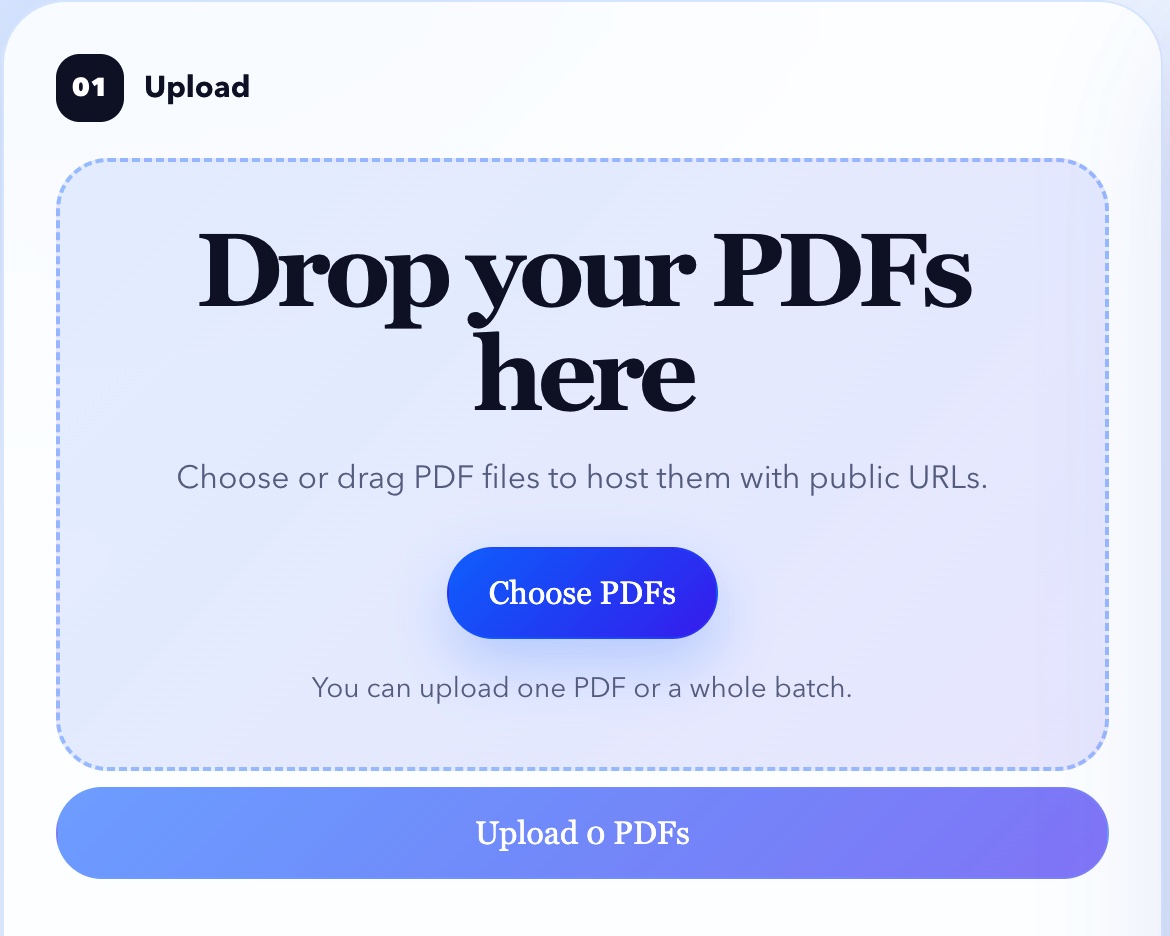
The page is split into two parts: an upload card at the top, and your upload history below it. We'll work through the upload card.
Step 2: Upload your PDF
You have two ways to add a file:
- Drag and drop the PDF anywhere onto the "Drop your PDFs here" zone.
- Click "Choose PDFs" and pick one or more files from your computer.
Batch upload is supported — select a whole folder of PDFs at once and they'll each get their own link.
A quick human-verification check runs once (the friendly "are you a robot?" prompt) to keep the service clean. After that, your file uploads and a public link is generated automatically.
Step 3: Copy your direct link
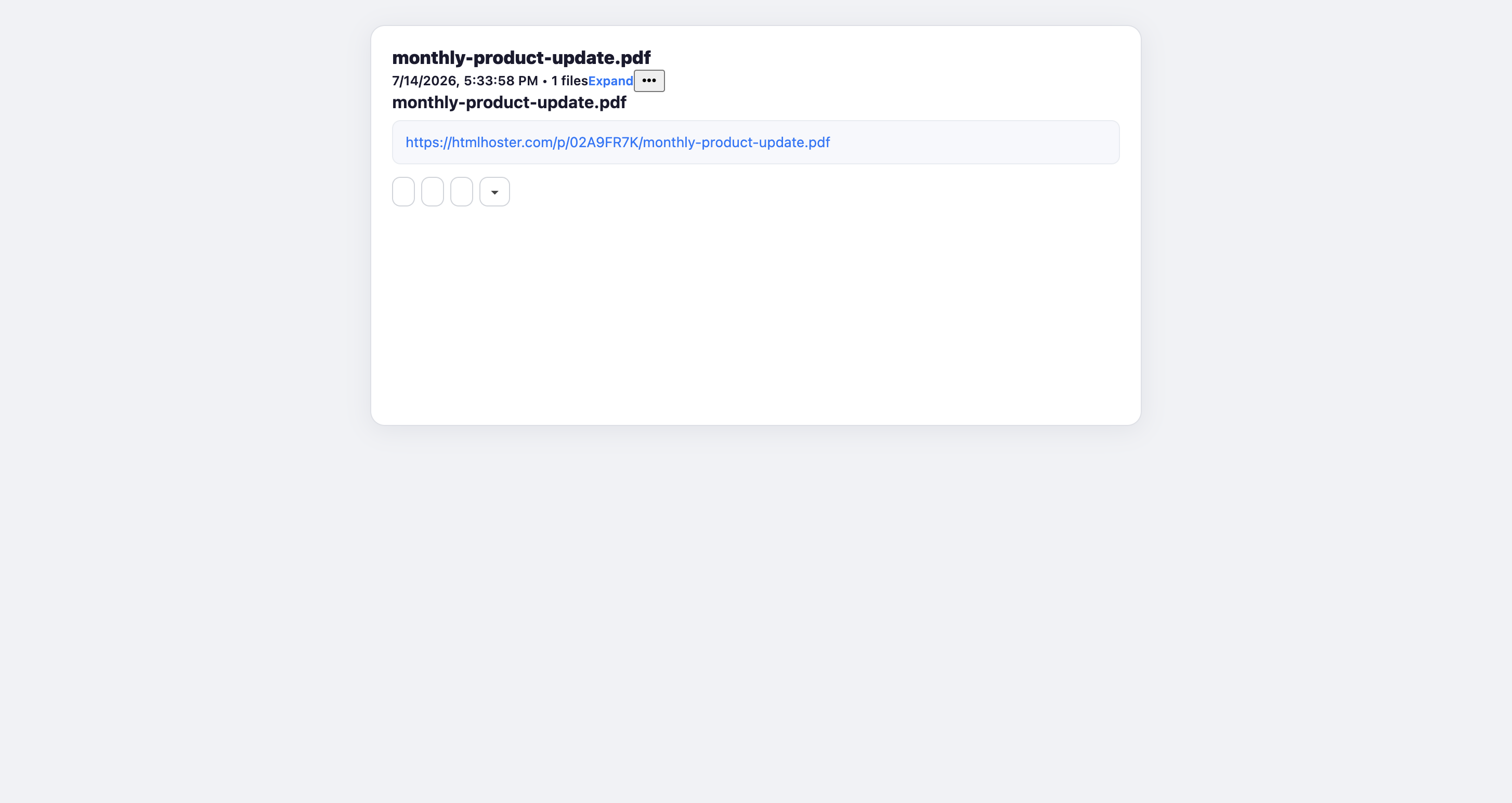
The moment the upload finishes, the card shows your file with its own public URL. In our example, uploading monthly-product-update.pdf produced:
https://htmlhoster.com/p/02A9FR7K/monthly-product-update.pdf
Click "Copy PDF URL" to grab it, or "Open PDF in new tab" to see exactly what recipients will see. That's the link you paste into an email, a Slack message, or a ticket.
Step 4: Embed it anywhere
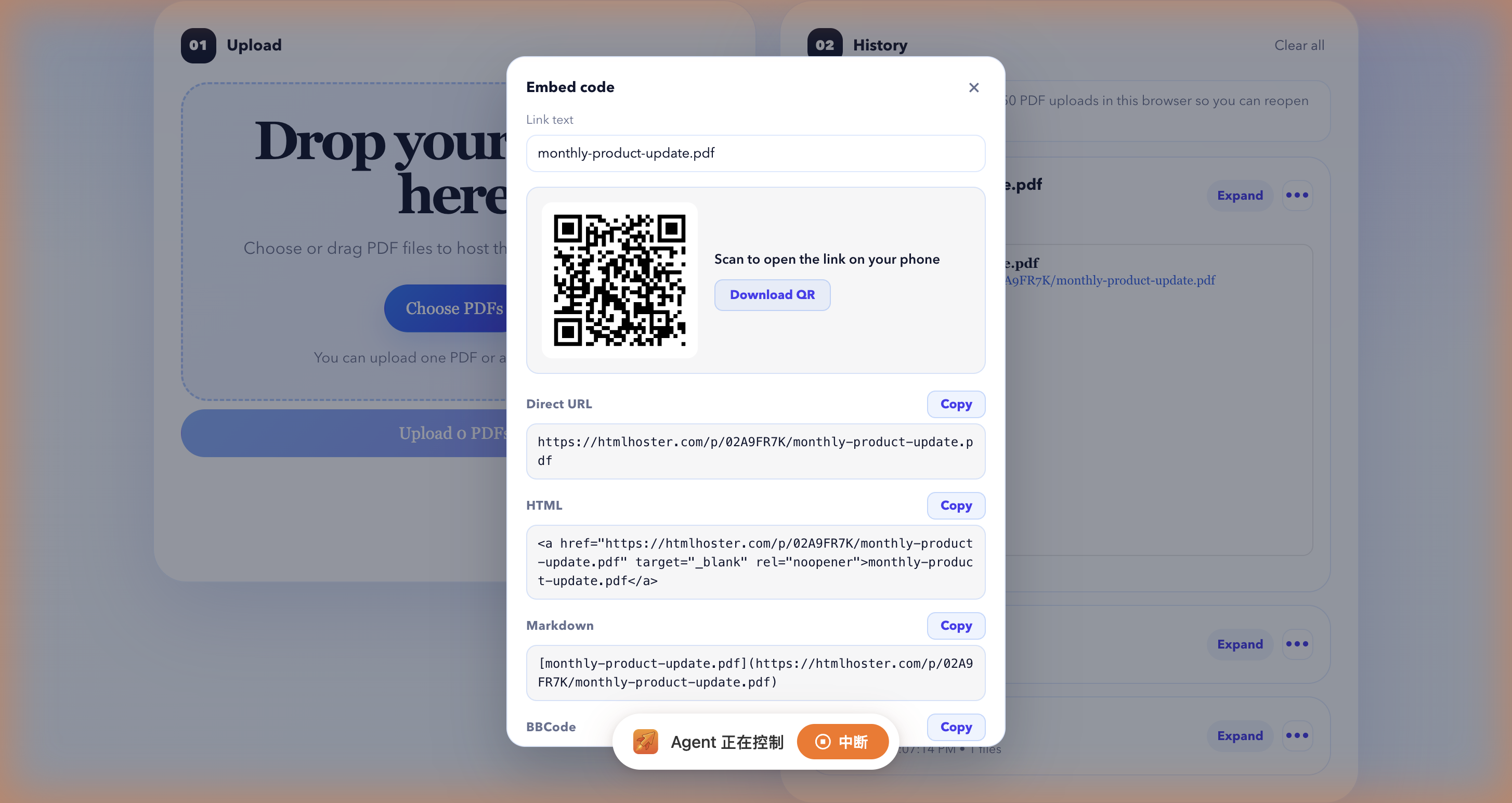
Sometimes a raw link isn't enough — you want the PDF to actually appear inside a page. Click "Embed code" and you'll get four ready-to-use formats built from your real link:
| Format | When to use it | Code |
|---|---|---|
| Direct URL | Paste into chat, email, or address bar | https://htmlhoster.com/p/02A9FR7K/monthly-product-update.pdf |
| HTML | Drop into a web page | <a href="https://htmlhoster.com/p/02A9FR7K/monthly-product-update.pdf" target="_blank" rel="noopener">monthly-product-update.pdf</a> |
| Markdown | Use in a README, docs, or GitHub issue | [monthly-product-update.pdf](https://htmlhoster.com/p/02A9FR7K/monthly-product-update.pdf) |
| BBCode | Post on a forum | [url=https://htmlhoster.com/p/02A9FR7K/monthly-product-update.pdf]monthly-product-update.pdf[/url] |
Copy whichever matches where you're posting, paste it, and you're done.
Step 5: Preview before you share
Before sending the link around, click "Toggle PDF preview" (or just look at the built-in preview in the result card). The PDF renders inline, so you can confirm it's the right file and that nothing got mangled in transit. Recipients see the same inline preview when they open the link — no PDF reader required.
Step 6: Find it again in history
Every upload is saved to the Upload history section at the bottom of the page (the latest 50, stored in your browser). Need the link again next week? It's right there — expand the entry, copy the URL, done. No re-upload needed.
When should you use a PDF link?
A public PDF link is the right tool whenever the file needs to travel farther than your outbox:
- Client reports & proposals — send one link instead of a heavy attachment that might bounce.
- Ebooks & whitepapers — host the file and embed it in a landing page.
- Manuals & help docs — link the latest PDF from your knowledge base so everyone sees the current version.
- Invoices & statements — share a stable URL instead of re-attaching the same file to every follow-up email.
- Course materials — post one link in a class channel and update the file behind it as needed.
PDF link vs. email attachment
Still tempted to just attach it? Here's the honest comparison:
| PDF Link | Email attachment | |
|---|---|---|
| File size limits | None worth mentioning | Often capped at 10–25 MB |
| Reaches the inbox | Always (it's just a URL) | Frequently blocked or quarantined |
| Same version for everyone | Yes — one source of truth | No — stale copies drift around |
| Opens on any device | Yes, in a browser | Sometimes blocked by mail clients |
| Embeds in a web page | Yes, with one line of code | No |
| Recipient needs a PDF app | No — previews inline | Often yes |
Email attachments aren't bad — they're just built for one-to-one, small, private files. A link is built for sharing.
Tips & best practices
A few habits make PDF links even more useful:
- Name the file clearly before uploading.
Q3-Report-final-v2.pdfbeatsdocument.pdf— the filename becomes part of the URL and the download name. - Keep files reasonably sized. There's no hard cap, but smaller PDFs open faster for recipients on mobile.
- Use the embed code, not the link, for docs. If the PDF lives inside a help article or README, paste the HTML or Markdown snippet so it shows up inline.
- Re-use the history. Don't re-upload the same file to get the link again — it's already in your history.
- Think about privacy. Links are public. Don't host anything truly sensitive (passwords, personal ID scans, unreleased financials) this way — use a proper access-controlled store for those.
Frequently asked questions
Is it free? The PDF to Link tool is free to use for hosting and sharing PDFs.
How long does the link stay live? Your uploaded PDF keeps its public link so you can share it whenever you need. (Treat the local history as a convenience on your device, not the source of truth — the file itself lives at its public URL.)
Can I upload more than one PDF at a time? Yes. Batch upload is supported — select multiple files and each gets its own direct link.
What file type do I need? PDF. That's what the tool is built for. Need to host a full web page or a folder instead? Use HTML Hosting. For images, see Image Hosting.
Can I replace the file later? Upload the new version and you'll get a fresh link for it. Share the new URL and the old one stays put.
Ready to share your first PDF?
Open the PDF to Link tool, drop in a file, and you'll have a shareable link in under a minute. No account required to start.
And if you ever need to publish something bigger than a single file — a full HTML page, a microsite, a portfolio — HTML Hosting does the same trick for entire sites.
Found this useful? Browse the blog for more sharing and hosting tips.